Send AI Tasks From Your Phone — How Claude Dispatch Turns Commute Time Into Work Time
Use Claude Cowork Dispatch to remote-control Claude Code from your phone. Setup guide, security tips, and real-world scenarios for working with AI on the go.
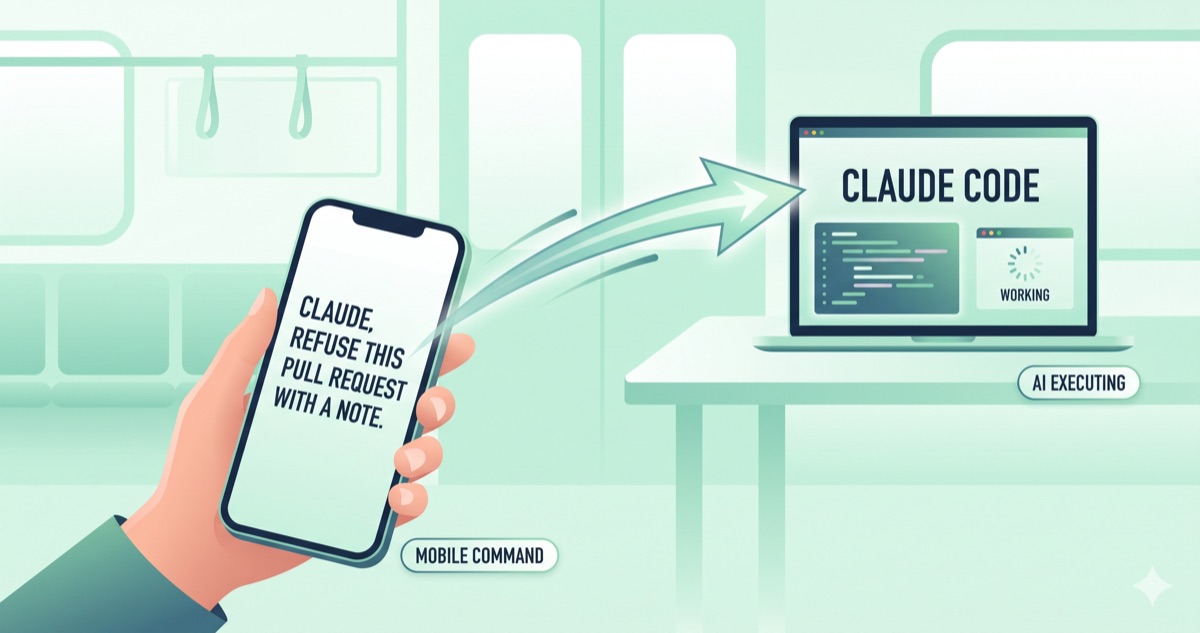
Claude Dispatch makes this possible. You're on the subway heading to a client meeting. You pull out your phone and type: "Analyze yesterday's sales data and build a presentation deck. Save it as PDF." By the time you arrive, your phone buzzes. "Done." You open the PDF and show it to the client on the spot.
This is Claude Dispatch. It lets you remote-control Claude Code on your home or office computer from your smartphone — no need to be sitting at a desk.
What Is Dispatch
Dispatch is a feature inside Claude Cowork that sends tasks from your phone's Claude app to Claude Code running on your computer. Think of it as a remote control for your AI assistant.
What makes it different from regular cloud AI: Claude Dispatch runs tasks on your computer, not in the cloud. See the Claude Code documentation for setup and installation details. Claude Code accesses your local files, uses your installed apps, and works with your machine's resources.
What you can do:
- Read, edit, and create files stored on your computer
- Analyze spreadsheet data and generate reports
- Modify project code and run tests
- Create PDFs, presentations, and other documents
- Receive push notifications when tasks complete
Limitations:
- Your computer must be on and Claude Desktop must be running
- If the computer goes to sleep, Dispatch stops
- It's remote control, not cloud computing
Setup Guide
Setup takes under two minutes.
What you need:
- Claude Desktop app installed on your computer
- Claude app installed on your phone (iOS/Android)
- Both logged into the same Claude account
Steps:
- Open Claude Desktop on your computer → enter Cowork (or Claude Code) mode
- Click "Dispatch" in the left sidebar
- Click "Get Started" → a QR code appears
- Scan the QR code with the Claude app on your phone
- Connected — messages from your phone now trigger Claude Code on your computer
Permissions and Security — Use a Dedicated Machine
Dispatch is powerful, and that power requires caution. Instructions sent from your phone execute on your computer, which means unintended file modifications or deletions are possible.
Recommended setup:
- Don't run Dispatch on your main work PC. Keeping Dispatch always-on where your critical work files live is risky
- Use a secondary PC or dedicated environment. An old laptop, a mini PC, or a separate user account dedicated to Dispatch isolates the risk
- Designate a working folder. Limiting which folders Dispatch can access prevents accidental changes to other files
Example setup:
Secondary PC (or dedicated account)
├── dispatch-workspace/      ← Dispatch working folder
│   ├── CLAUDE.md            ← AI instructions
│   ├── data/                ← Data for analysis
│   ├── output/              ← Results go here
│   └── templates/           ← Report templates
This gives Dispatch a clear working scope while keeping your main PC's files safe.
Real Scenario — Handling a Client Request From the Subway
Here's a real-world situation showing what Dispatch makes possible.
Background:
Marketer A has a quarterly marketing report Excel file (Q1_Report_2026.xlsx) on their secondary PC. It contains ad spend by channel, conversion rates, and customer acquisition paths across multiple sheets. Claude Desktop with Dispatch is running on that machine.
9:15 AM — On the subway, heading to a client meeting
The client sends a message: "Can you show us CPA trends by channel for last quarter at today's meeting? We need it for a management report."
Without Dispatch?
"I'm traveling right now and can't pull that up. I'll send it separately after the meeting." That's the only realistic answer. Extracting and formatting data from an Excel file on your phone is practically impossible.
With Dispatch?
9:18 AM — Send instructions via phone
Open the Claude app and send through Dispatch:
Open dispatch-workspace/data/Q1_Report_2026.xlsx and do the following:
- Extract Jan-Mar ad spend and conversions by channel (Google, Meta, LinkedIn, Direct)
- Calculate monthly CPA (cost per acquisition = spend ÷ conversions) for each channel
- Identify which channels improved and which got worse
- Create a management-ready slide deck and save as output/CPA_Analysis_Q1.pdf
Include in the slides:
- CPA comparison table by channel
- Monthly trend summary
- Root cause analysis for improving/declining channels
- Recommendations for next quarter
9:20 AM — Task in progress
Your phone shows Claude working in real time — reading the Excel file, extracting data with Python, running calculations, building the slide document. When it needs file access permission, you approve from your phone.
9:35 AM — Push notification
"Task complete: output/CPA_Analysis_Q1.pdf created."
You open the PDF. It's a 4-slide deck:
- Slide 1: CPA comparison table by channel (Jan/Feb/Mar)
- Slide 2: Monthly CPA trends — Meta improved 23% from Jan to Mar, Google Ads worsened by 15%
- Slide 3: Root cause analysis — Meta improvement from retargeting campaign launch, Google Ads decline from rising brand keyword costs
- Slide 4: Next quarter recommendations — increase Meta budget, restructure Google Ads keyword strategy
Beyond the CPA data the client asked for, there's root cause analysis and actionable recommendations. You've prepared more than what was requested.
9:38 AM — Reply to the client
"Got it ready. I'll show you at the meeting."
9:50 AM — Arrive at client office
The output folder is pre-synced with Google Drive, so you open the PDF directly on your phone and present it. The client is impressed — they expected raw numbers, not a full analysis with recommendations.
The key: All you typed on your phone was the instruction message. You never opened Excel, never ran calculations, never built slides. Claude Code on your secondary PC did everything.
More Use Cases
Auto-Generate Weekly Reports
Friday evening, send from your phone: "Draft a weekly report from this week's work folder." Monday morning, the draft is waiting for you.
Data Analysis With Visualizations
"Analyze the last 6 months of ad spend data and create a channel-by-channel ROI comparison table." Send during your commute, review when you arrive.
Code Changes and Testing
For developers: "Check bug report #42 on the main branch and create a fix PR." Send while commuting, review the PR when you get to the office.
Dispatch vs Regular Web AI
| Feature | Regular Web AI | Dispatch |
|---|---|---|
| File access | Uploaded files only | All files on your computer |
| Execution | Cloud servers | Your computer |
| Output storage | Inside the chat | Saved directly to folders |
| Data security | Processed on cloud | Local processing (instructions + memory) |
| Computer required | No | Yes (must be on) |
| Task scope | Text processing in chat | File creation, editing, analysis |
To get the most out of Claude Dispatch, setting up proper AI instruction files is essential. Our AI Custom Instructions Guide covers how to configure custom instructions, and the AI Instructions Debugging Guide shares practical tips for real-world use.
Claude Dispatch Changes How You Work
Dispatch isn't "an AI that works 24/7 in the cloud." It's "a remote control you can use to send instructions anytime." Because it runs on your computer instead of cloud servers, it has advantages in file access and security over web-based AI.
That power comes with responsibility. Use a secondary PC or dedicated environment, limit folder access, and review results before sharing.
Being able to collaborate with AI while on the move using Claude Dispatch — that alone changes how you work. Commute time, waiting time, travel time all become productive time.