VS Code AI Tools — A Bridge Guide for Newcomers Moving from Web AI
VS Code AI tools work differently from web AI. This bridge guide explains the shift in working style, where Claude/Gemini/Codex each fit, and why Gemini hits a wall on images and PDFs inside the IDE.
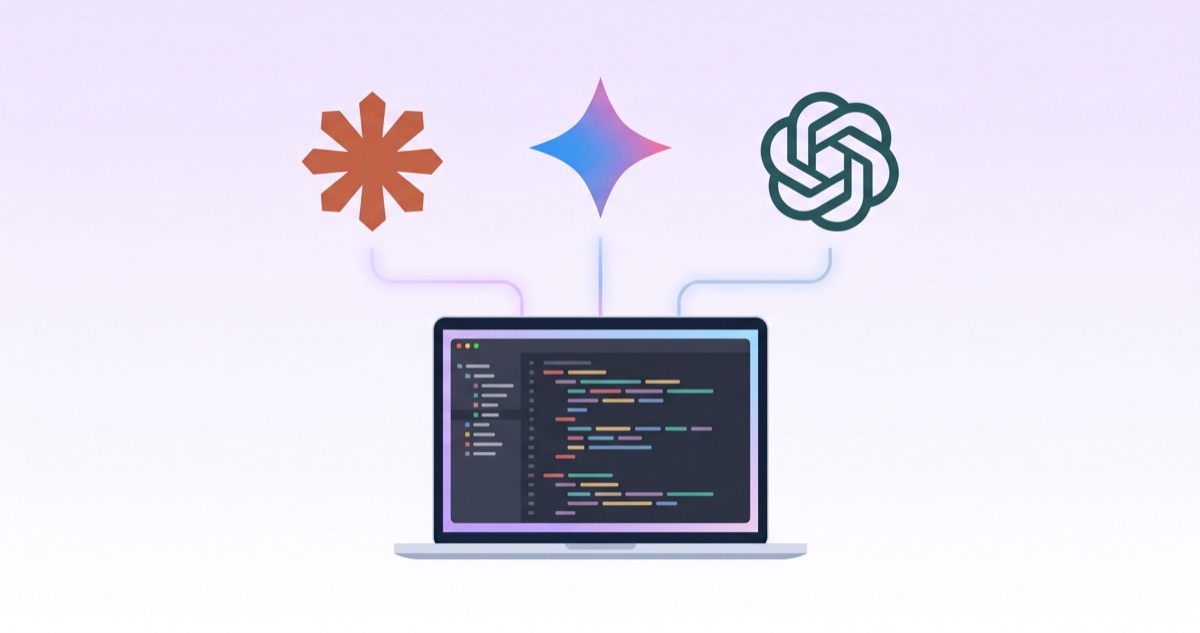
If you have only used ChatGPT, Claude, or Gemini in a browser, the question "should I install VS Code too?" probably came up recently. That instinct is now visible in adoption data. This guide unpacks what changes when you move to VS Code AI tools, and where Claude, Gemini, and Codex each fit. A prior post on managing AI instructions with CLAUDE.md covered what happens once you settle into a single tool. This one is the bridge that gets you to that point.
Why VS Code is Growing — Not for Coding, but for AI
According to Stack Overflow's 2025 survey, VS Code usage sits at 75.9% among roughly 50 million developers — the top IDE for four years running, up from 73.6% in 2024.
What's more telling is who is joining.
- 63% of Vercel v0 users are non-developers
- Replit has 50 million users — already larger than the global developer population (~28 million)
- AI tool usage inside VS Code: 77.7% of professionals, 80.4% of learners
- 92% of US developers use AI coding tools daily
"Vibe coding" — telling AI what you want in plain language — has gone mainstream. The implication for VS Code AI tools is clear: a large share of new VS Code users aren't aspiring developers. They're people who want to use AI better.
Web AI vs VS Code AI — The Real Difference is the Working Style
| Aspect | Web AI (claude.ai, ChatGPT, Gemini) | VS Code + AI extensions |
|---|---|---|
| Context | One chat, paste files manually | Reads the whole project folder |
| File edits | Copy reply → paste into your editor | AI edits files directly |
| Terminal | Not possible | Runs commands and tests |
| Change history | Lost when the chat ends | Tracked automatically with git |
| Multi-file work | Mostly one file at a time | Coordinated multi-file changes |
| Entry barrier | Zero (browser only) | Install, account, extensions |
The shift can be summed up in one line: from "ask and paste" to "give the AI a job."
In a browser, you were the bridge — moving answers from the chat into your editor. In VS Code, that bridge disappears. The AI opens, edits, and saves files itself. The first hour feels clunkier than a browser tab, but most people don't go back once it clicks.
One data point captures the current state well: 70% of developers use 2–4 AI tools at the same time. This is not a winner-take-all category. It's an era of dividing roles between tools.
The Three Major VS Code AI Tools — Where Each One Fits
The most common newcomer question is "which one should I install?" You can install all three side by side without conflict, but if you start with one, match it to your situation.
Claude Code — The Thoughtful Coder
As of May 2026, VS Code Marketplace installs sit at roughly 14.8 million, compared to about 9.2 million for Codex and 4.3 million for Gemini Code Assist — the largest footprint among the three. Just a month earlier the number was 10.1 million, so the growth curve is steep.
- Strongest for multi-file refactoring, complex debugging, and architecture decisions
- One blind comparison reported a 67% win rate on frontend/React work
- Image and PDF attachments are supported — you can paste a screenshot and ask Claude to debug a UI directly
- Trade-off: paid, and requires installing a separate binary (not a one-click setup like Gemini)
Gemini Code Assist — The Lightweight Companion
- 1M token context — useful for sweeping through a large project at once
- Most generous free tier of the three — zero entry cost
- Google Workspace integration (Sheets, Slides)
- Trade-off: no direct image or PDF attachment in the chat (analyzed below)
- ⚠️ After June 18, 2026, individual tiers (Free/Pro/Ultra) are being migrated to Google's new Antigravity product. Worth factoring in if you're starting now.
Codex (OpenAI) — The Autonomous Operator
- Strong at terminal-native work — 77.3% on Terminal-Bench vs Claude Code's 65.4%
- Roughly 4× token efficiency for equivalent tasks
- Supports multimodal input (images, screenshots)
- For ChatGPT Plus subscribers, effectively free to use
- Trade-off: the autonomous style is fast but can skip nuance on context-heavy tasks
Why Gemini Cannot Take Images or PDFs Inside VS Code
Browser Gemini is a multimodal heavyweight. It reads images, PDFs, even video. Yet inside the VS Code extension, that capability is mostly locked away. If you have felt that gap, you're not imagining it.
Three reasons explain the limitation.
- Gemini Code Assist is scoped as a "code assist" product — the chat interface has no UI for attaching images.
- The
@filecommand attaches text and code files, but not images or PDFs. - GitHub Issue #13860 has been collecting user requests for this feature for over a year, and remains unresolved at the time of writing.
Claude Code and Codex both support multimodal attachments today. In other words, even among VS Code AI tools, the input modalities differ. Newcomers who got used to feeding Gemini screenshots in the browser run into this wall almost immediately.
Practical impact:
- Debugging a UI from a screenshot → Claude Code or Codex
- Implementing from a PDF spec → Claude Code (you can even target page ranges)
- Pure code and text work → Gemini Code Assist is fine
- Sweeping a large codebase in one shot → Gemini's 1M context wins
If your workflow leans on multimodal inputs the way browser Gemini taught you, Claude Code is the practical answer right now.
Picking the Right VS Code AI Tools for Your Situation
If you start with just one, pick the one that matches how you actually work.
| Situation | Recommended tool | Why |
|---|---|---|
| Cost-sensitive, just getting started | Gemini Code Assist | Best free tier |
| Often work with images or PDF docs | Claude Code | Multimodal attachment supported |
| Already paying for ChatGPT Plus | Codex | Effectively free for you |
| Need to scan a whole large project | Gemini Code Assist | 1M context advantage |
| Multi-file refactoring or debugging | Claude Code | Strong cross-file reasoning |
| Repetitive code generation or automation | Codex | Autonomous + token efficient |
Again, 70% of users run 2–4 of these in parallel. You don't need to commit to one. Once your workflow settles, you'll naturally rotate between two or three depending on the task.
The Wall Newcomers Actually Need to Cross
VS Code AI tools are not just a richer version of the browser experience. They reshape how you work with AI. The real wall for newcomers is not "which tool should I install?" — it's accepting that each tool is good at a different job.
Web AI for quick questions, VS Code AI tools for hands-on work — that's the split. Once that division clicks, even people who don't code professionally can fold AI deeply into their workflows. The next post in this series will lay out a 30-minute install-and-first-task path for each tool, so you can cross this bridge without burning a weekend on setup.